
Ollama + Continue: Open-Source is Always Better!
/ 4 min read
Table of Contents
Some time ago I set up a local environment to run language models on my own machine using LM Studio.
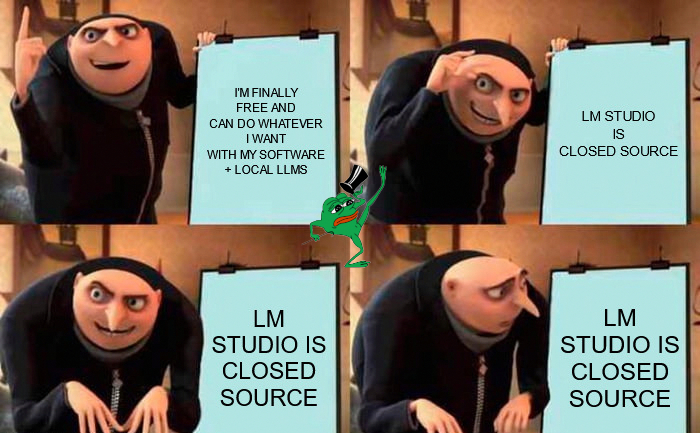
Well, I have to admit today that I’ve concluded that while LMStudio has its merits, it doesn’t fully align with my principles. Consequently, I’ve decided to transition to Ollama and refresh my setup to embrace the recent hype surrounding the Chinese model trained with synthetic data based on ChatGPT responses. (FTW: Work smarter, not harder! :D
)
Installing Ollama
Installing Ollama is straightforward. While compiling the project locally might be challenging for some, pre-built release builds are available on the official website: ollama.com. Once downloaded and installed, you can use the command-line interface (CLI) to download and run models easily.
Available DeepSeek R1 Models
Here is a table summarizing the currently available DeepSeek R1 models:
| Name | Size |
|---|---|
| deepseek-r1:1 .5b | 1.1 GB |
| deepseek-r1:7b | 4.7 GB |
| deepseek-r1:8b | 4.9 GB |
| deepseek-r1:14b | ~ 9 GB |
| deepseek-r1:32b | ~ 20 GB |
| deepseek-r1:70b | ~ 43 GB |
| deepseek-r1:671b | ~ 404 GB |
Selecting the Right Model
Selecting the appropriate model depends on your hardware. Here’s a table to help you decide:
| Parameters | RAM | VRAM | Use Case |
|---|---|---|---|
| 1.5B | ~4 GB | ~3.5 GB | Simple tasks on modest PCs |
| 7B | ~8–10 GB | ~8 GB | Intermediate tasks |
| 14B | ~16 GB | ~12 GB | Advanced tasks |
| 70B | ~40 GB | ~40 GB | Complex tasks on powerful PCs |
| 671B | ~1,342 GB | ~1,342 GB | Highly specialized tasks requiring extensive computational resources |
Notes:
-
The VRAM requirements are approximate and can vary based on specific configurations and quantization techniques.
-
Quantization methods can reduce VRAM usage. For instance, a 1.58-bit quantized version of the DeepSeek-R1 model can fit into 160 GB of VRAM, allowing it to run on two NVIDIA H100 80GB GPUs. (unsloth.ai)
-
For CPU-based inference without a GPU, it’s possible to run certain quantized versions of the model with as little as 20 GB of RAM, though performance may be slower. (unsloth.ai)
When selecting a model, ensure that your hardware meets the necessary requirements to achieve optimal performance.
Downloading and Running the Model
To download and run a model using Ollama, follow these steps:
-
Start Ollama: After installation, Ollama will run in the background without displaying any visible interface.
-
Download the Model: Open a terminal and execute the following command to download the desired model:
Terminal window ollama pull deepseek-r1:7bThis command will download the latest version of the
deepseek-r1:7bmodel.
-
Serve the Model: Once downloaded, run the following command to expose the model on your local machine:
Terminal window ollama serveBy default, the model will be accessible at
http://localhost:11434. Additionally, after pulling a new model,the server will automatically restart to apply the changes, meaning that it will start automatically the first time we pull!
Models I Downloaded
I also downloaded a few additional models to expand my local setup. Here’s the list of models I have installed on Ollama:
ollama ls| Model Name | ID | Size |
|---|---|---|
| llama3.2:3b | a80c4f17acd5 | 2.0 GB |
| nomic-embed-text:latest | 0a109f422b47 | 274 MB |
| qwen2.5-coder:3b | e7149271c296 | 1.9 GB |
| deepseek-r1:7b | 0a8c26691023 | 4.7 GB |

Integrating with Continue Extension
To integrate the model with your development environment, you can use the Continue extension. After installation, update the config.json file to include the models you’ve downloaded.
Path to config.json
- macOS and Linux:
~/.continue/config.json - Windows:
%USERPROFILE%\.continue\config.json
Sample config.json
Here’s an example of what the configuration file might look like:
{ "allowAnonymousTelemetry": false, "models": [ { "title": "DeepSeek-R1 7B", "provider": "ollama", "model": "deepseek-r1:7b" }, { "title": "LLAMA 3.2B", "provider": "ollama", "model": "llama3.2:3b" } ], "tabAutocompleteModel": { "title": "Qwen2.5-Coder 3B", "provider": "ollama", "model": "qwen2.5-coder:3b" }, "embeddingsProvider": { "provider": "ollama", "model": "nomic-embed-text" }, "contextProviders": [ { "name": "code", "params": {} }, { "name": "docs", "params": {} }, { "name": "diff", "params": {} }, { "name": "terminal", "params": {} }, { "name": "problems", "params": {} }, { "name": "folder", "params": {} }, { "name": "codebase", "params": {} } ], "slashCommands": [ { "name": "share", "description": "Export the current chat session to markdown" }, { "name": "cmd", "description": "Generate a shell command" }, { "name": "commit", "description": "Generate a git commit message" } ]}Save the file, and you’re ready to generate code!

Note: If you really care like me, don’t forget to disable the Anonymous Telemetry (For additional details: docs.continue.dev); also it’s worth nothing that Ollama adds itself to the startup processes by default… if you prefer to prevent this behaviour, make sure to disable it.
Happy hacking!
Contacts
For questions or suggestions, contact: [email protected].