
Bypassing ISP Content Blocking with DoH
/ 5 min read
Table of Contents
Hello! It’s been a while since I last wrote on the blog, but unfortunately, my life has been quite hectic lately, leaving me with little time to focus on writing posts.
Nonetheless, I have never stopped tackling all sorts of problems! :D
In fact, I recently dealt with a rather tricky issue that friends and family pointed out to me, and I decided to explore it further.
The Problem
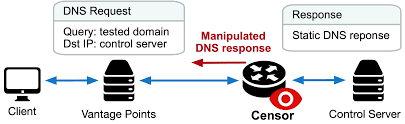
Recently, some of the largest Italian ISPs have begun enforcing DNS traffic rules.
This is most likely related to the crackdown on illegal content streaming, but it also opens up an interesting discussion about user security.
The main risk is that by forcing users to use their DNS servers, ISPs can monitor and log all DNS requests. This means they can track which websites are visited, creating a detailed profile of users’ browsing habits.
Additionally, this practice could expose users to potential DNS traffic manipulations, such as redirection to malicious sites or selective blocking of certain online resources not hosting malicious contents.
Another critical aspect is that ISPs could use this information for commercial purposes or share it with third parties, further compromising user privacy.
Technical Dive-In
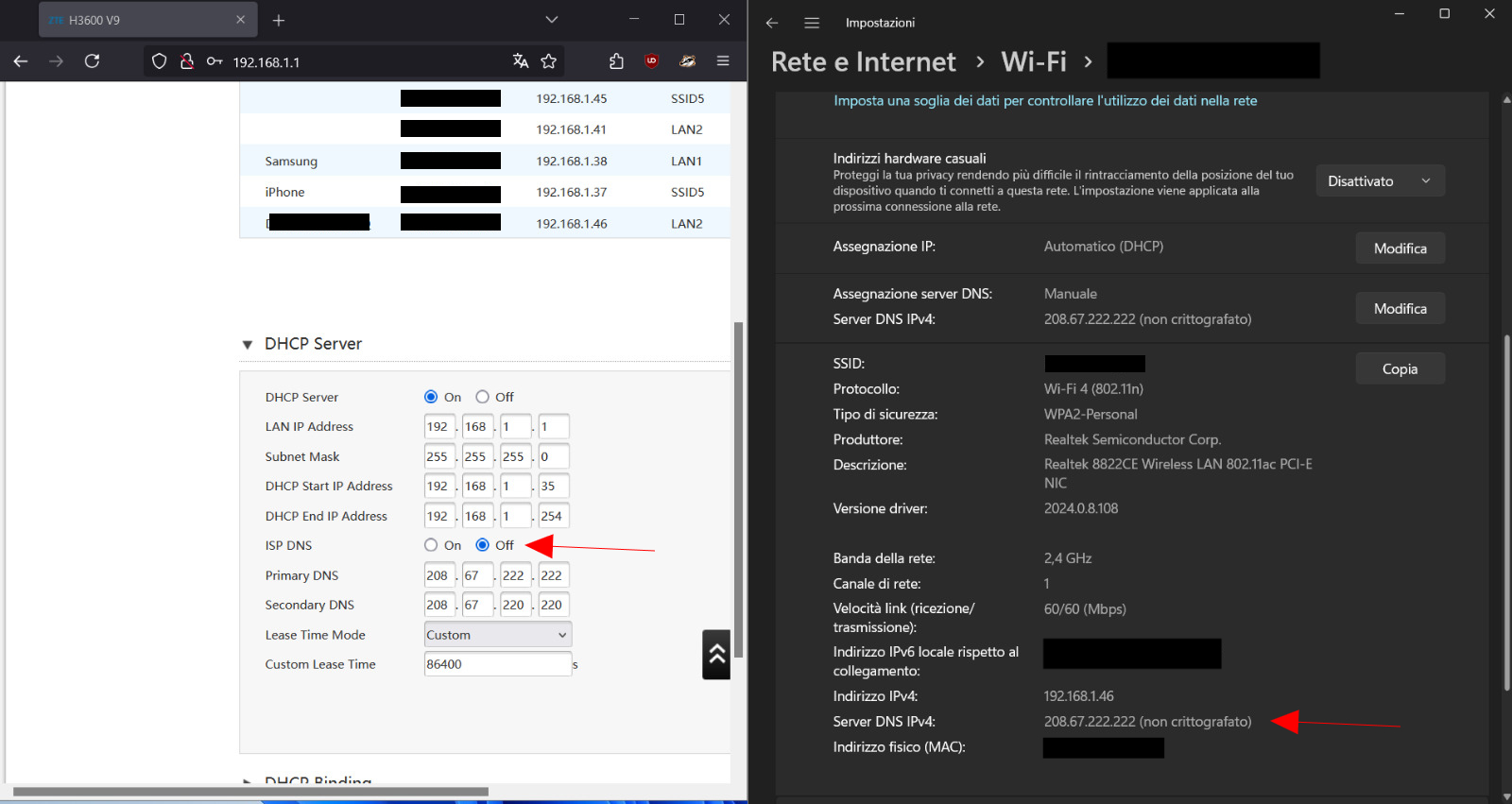
With patience, I decided to conduct a series of in-depth tests to verify this claim. I configured various public DNS services (including Google DNS, Cloudflare, and OpenDNS) on two routers from different ISPs and monitored the DNS traffic. The results were unequivocal: despite the DNS settings configured on the router, all DNS requests were systematically redirected to the ISP’s DNS servers.
I conducted further tests on a ZTE router provided by a major Italian ISP. Even though the official manual clearly indicated an “ISP DNS” option that could be disabled to use custom DNS, after disabling this option, the router continued to ignore the custom DNS settings.
The Solution: DNS-over-HTTPS (DoH)
After various attempts, the solution turned out to be the use of DNS-over-HTTPS (DoH). This technology represents a significant evolution over traditional DNS as it encapsulates DNS requests within the HTTPS protocol.
The working principle is simple but effective: instead of sending DNS requests in plain text over port 53 (which can be easily intercepted and modified by the ISP), DoH uses the HTTPS protocol on port 443. Since HTTPS traffic is encrypted, the ISP cannot read or modify DNS requests, making forced redirection to their servers impossible.
In practice, when a browser or application configured to use DoH needs to resolve a domain name, it sends an HTTPS request to a DoH server (such as those from Cloudflare or Google). The server responds with the requested IP address, all through a secure and encrypted connection.
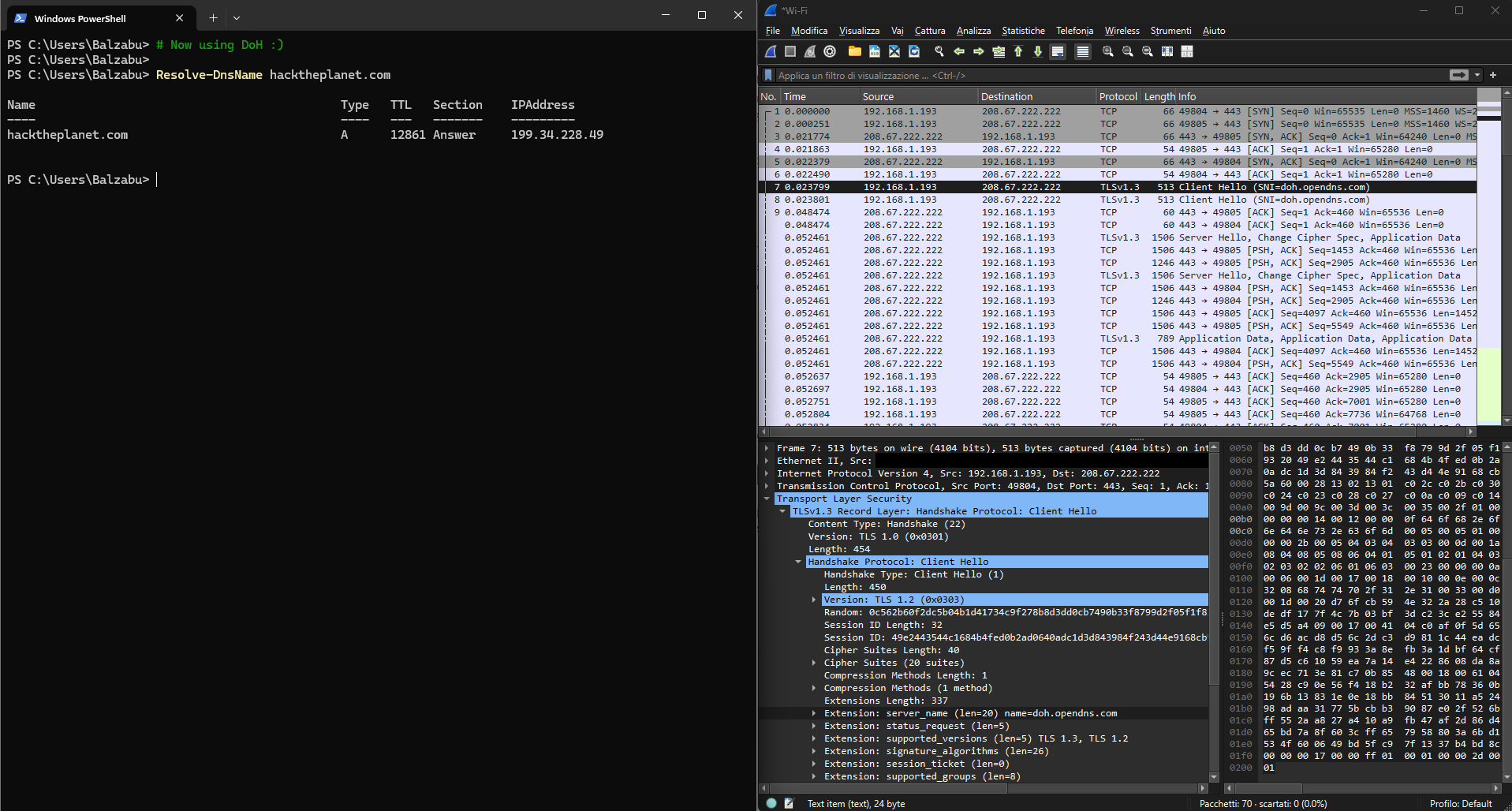
This method is particularly effective because, although the ISP can see that we are communicating with an HTTPS server, it cannot determine which DNS requests we are making or alter them.
Comparison with Traditional DNS
To better understand the difference, let’s look at how traditional DNS works compared to DoH. In traditional DNS, requests are sent in plain text, which means anyone on the network path, including ISPs, can see and potentially manipulate them.
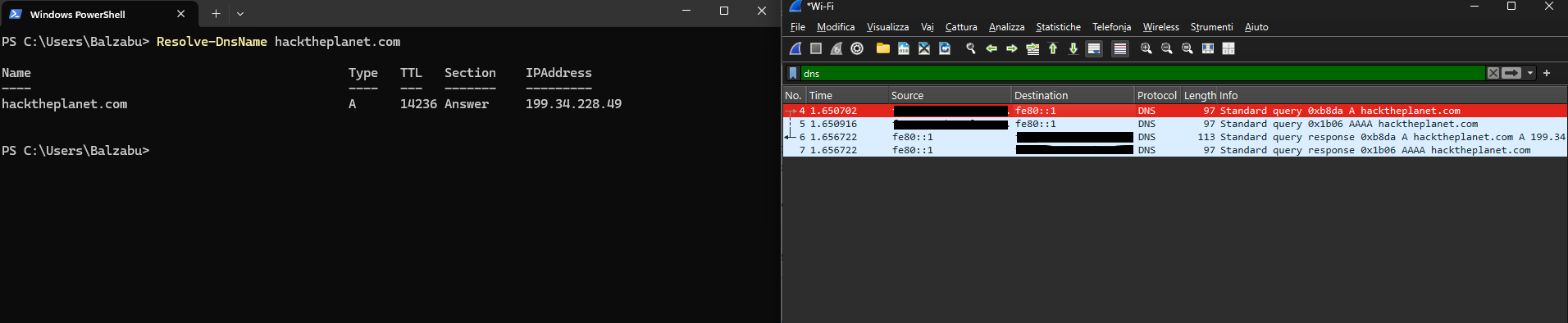
In contrast, DoH encrypts the requests, ensuring that only the intended DoH server can decode them. This encryption prevents ISPs and other intermediaries from viewing or altering the DNS traffic.
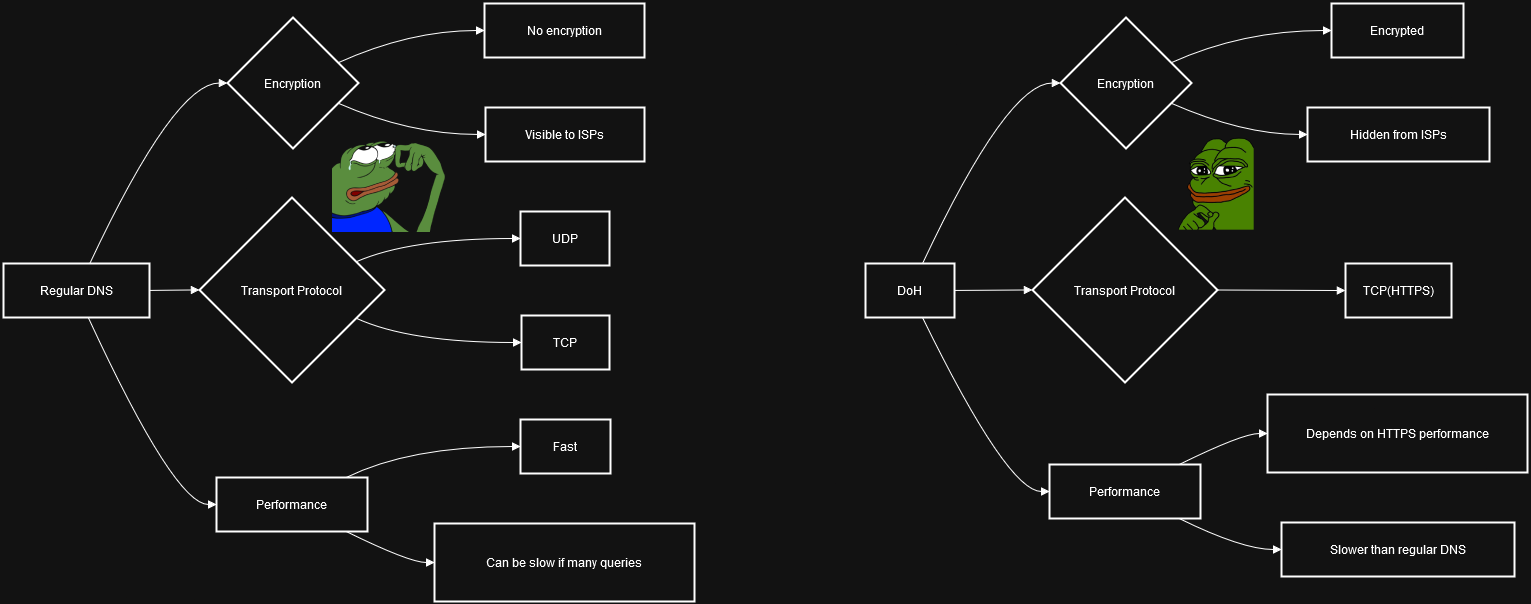
By adopting DoH, users can significantly enhance their privacy and security, bypassing ISP content blocking and preventing potential DNS manipulations.
Enabling DoH in Practice
Knowing the theory is nice, but how do you actually turn DoH on? Depending on how much coverage you want, there are three levels to pick from. I’ll go from the quickest to the most complete.
1. Browser-level (the quick win)
The fastest way to start is enabling DoH directly in your browser. It only protects that browser’s traffic, but it takes ten seconds and it’s enough to dodge the ISP DNS hijacking while you’re surfing.
- Firefox:
Settings > Privacy & Security > DNS over HTTPS > Max Protection, then pick a provider (Cloudflare, NextDNS) or set a custom one. - Chrome / Edge / Brave:
Settings > Privacy and security > Security > Use secure DNS, then choose a provider or paste a custom DoH endpoint (for examplehttps://cloudflare-dns.com/dns-query).
That’s it: from now on those queries travel on port 443 and the ISP can no longer redirect them.
2. System-level
If you want every app on the machine to benefit and not just the browser, configure DoH at the OS level.
- Windows 11 supports DoH natively. Go to
Settings > Network & Internet > (your adapter) > Edit DNS server assignment > Manual, set a known DoH-capable resolver (for example1.1.1.1or8.8.8.8) and switch DNS over HTTPS to On (automatic) or Encrypted only. - Android: careful here, because the built-in Private DNS option is actually DoT (DNS-over-TLS, port 853) and not DoH. It works against the same ISP hijacking, but if you specifically want DoH use an app like Intra (by Jigsaw) or the official 1.1.1.1 app.
3. Network-wide (the real fix)
The cleanest solution, and the one I’d actually recommend, is to handle DNS once for the whole network so that every device (smart TVs, consoles, IoT, everything) is covered without touching each one.
The idea is to run your own local resolver that talks to the upstream over DoH. The easiest options are:
- AdGuard Home: it has DoH upstreams built in, just point it at
https://cloudflare-dns.com/dns-queryand set it as your network DNS. - Pi-hole + cloudflared: Pi-hole for the nice UI and ad-blocking, with
cloudflaredrunning as aproxy-dnsforwarder that ships the queries out over DoH.
Then set this local resolver as the DNS server on your devices, or on the router itself where the ISP firmware lets you.
Note: DoH only protects the DNS part of the picture. It stops the ISP from seeing and tampering with your lookups, which is exactly the hijacking we ran into here, but it doesn’t hide the destination IP or encrypt the rest of your traffic. For that you’d still want a VPN.
Contacts
For questions or suggestions, contact: [email protected].